

See how many people joined in a period
Short answer
Open Results, pick a time range at the right of the page title, and read the New contacts card. The chart under it shows which days, weeks, or months they joined in.
When you’re done, you’ll know how many people joined your list in the last week, month, quarter, or year. You’ll also know how that compares with the period before.
-
Open Results in the top bar. The Contacts tab is open, over the last 30 days.
-
Pick a range at the right of the page title: 7 days, 30 days, 90 days, or 12 months. The numbers dim for a moment, then change.
-
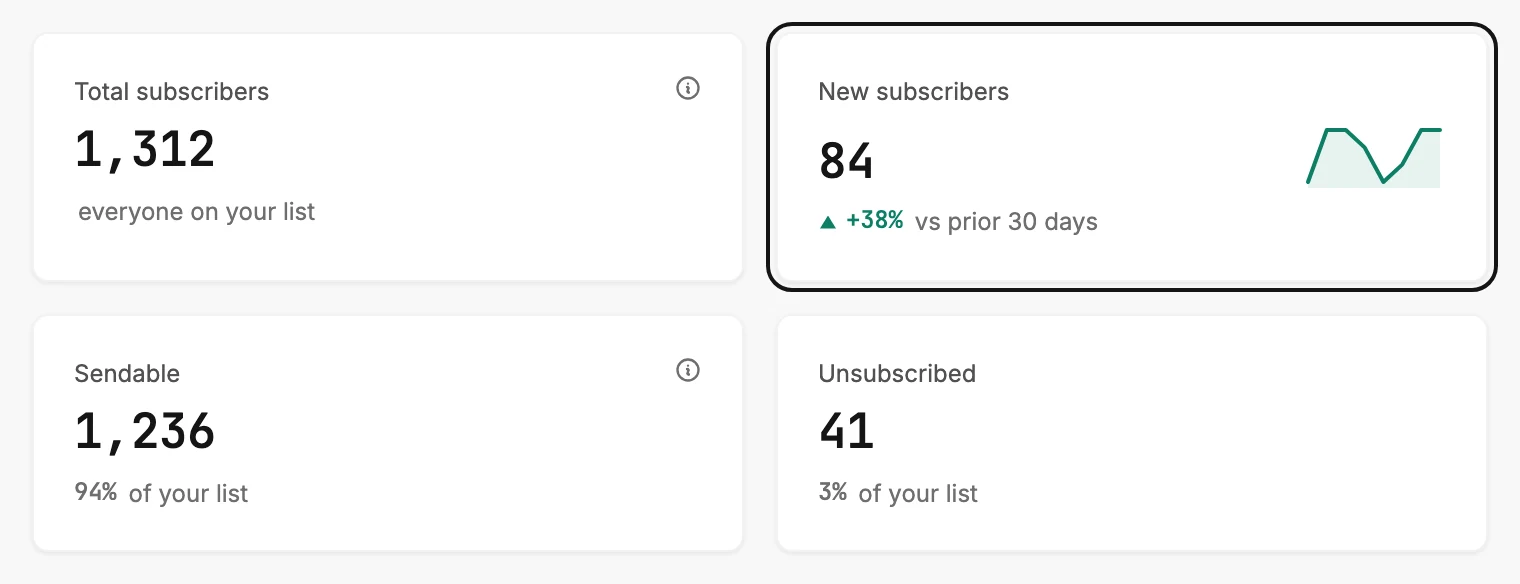
Read New contacts. The number is everyone who joined in that range.
-
Read the line under it. It compares the range with the same length of time before it. A green arrow pointing up means more people joined this time; a red arrow pointing down means fewer.
-
Rest your pointer on the chart under the cards. A small tip shows the bar’s date and how many joined then.
There is no calendar-month range, so 30 days is the nearest; see Choose a time range. Someone you added by hand or brought in with a file counts as joined on that day. Someone you’ve since deleted no longer counts. See How Jounce counts new contacts.
Next step
Where they came from sits further down: The Contacts tab. See how your forms did over a period ranks the forms that brought them.
More in this topic
Also answered here
- how do I compare this month's signups to last month
- how is my list growing
- how many contacts did I get in the last 7 days
Updated